Why Ayushman Card Download Is Not Working (2026 Easy Guide)
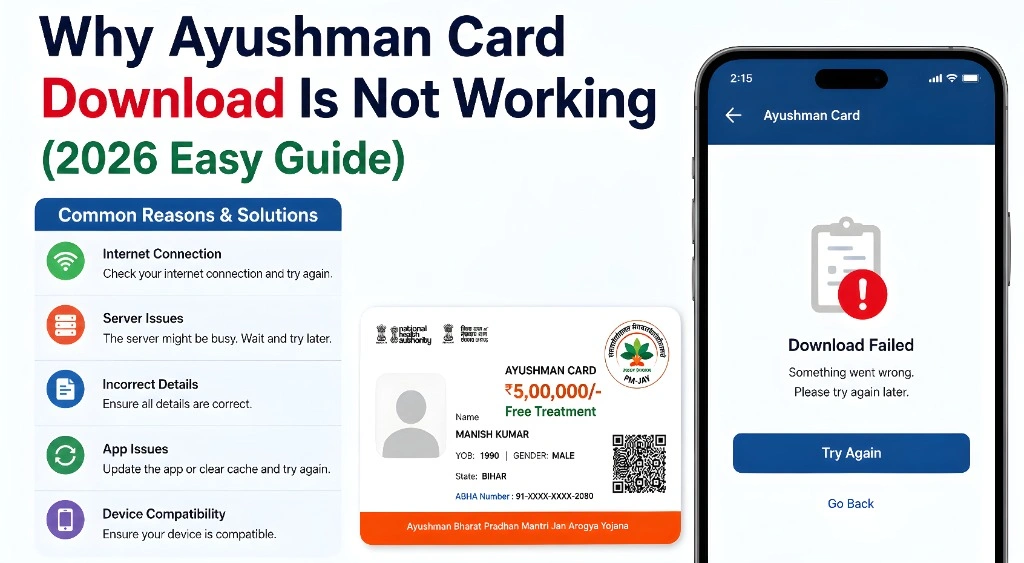
If your Ayushman Bharat card download is not working, don’t worry. This is a very common issue in 2026. Many users face this even after approval.
In this guide, you will learn the main reasons, simple fixes, and step-by-step solutions in easy language.
What “Download Not Working” Means
When the download option is not working, it usually means:
- Your card is not fully generated yet
- Or the system has not updated your record
- Or there is a technical issue in the portal
Even if your application is approved, download only works after full card generation.
Main Reasons Why Ayushman Card Download Is Not Working
Without Aadhaar verification, download is not enabled.
Approval confirms eligibility, not card availability.
The PMJAY portal may be slow or under maintenance.
Cache, cookies, or outdated browser can block download.
OTP verification fails if Aadhaar-linked number is different.
Data may still be updating in the system.
Too many users at once can cause temporary failure.
If you stay idle too long, login session may expire.
Common Download Problems and Their Meaning
| Problem | Meaning | What It Indicates |
|---|---|---|
| Download button not visible | Card not generated | Wait for update |
| Error while downloading | Server issue | Try again later |
| OTP not received | Mobile mismatch | Update Aadhaar number |
| PDF not opening | File error | Retry download |
| No record found | Data not synced | Visit CSC center |
System updates often fix the issue automatically.
Clear cookies
Reopen browser
Try incognito mode
Use Chrome, Firefox, or another phone/laptop.
Complete Aadhaar verification if pending.
Log out and log in again to refresh system.
CSC can fix backend or regenerate your card.
You Can Also Read: Ayushman Card Download Step-by-Step Guide ( update in 2026 )
How to Avoid Ayushman Card Download Issues
When You Should Take Action
Take action if:
Otherwise, it is usually temporary.
FAQs
Conclusion
Ayushman card download not working is mostly a temporary technical or verification issue. In most cases, it gets fixed automatically after system update or e-KYC completion.
You should first try basic fixes like clearing cache, changing browser, and waiting 24–72 hours. Do not panic or reapply again and again.